This post walks through one CyberArk control tested end to end with Playwright, from the manual test case to a run that needs no one at the keyboard. The control is an exclusive account with one-time passwords; the finished test plays two users, checks every result against the Vault’s API, and finishes in under two minutes.
It is written for PAM engineers who test controls by hand today and wonder whether automation is worth it. You do not need to know Playwright; the first section explains what it is. Everything shown ran against a self-hosted CyberArk 15.0 lab (PVWA, Vault, CPM, Active Directory).
What Playwright is
Playwright is an open-source framework from Microsoft that drives a real browser (Chromium, Firefox or WebKit) from code. You write what a person would do, such as “open the account, click Show, type a reason”, and Playwright does it, checks the result and records what happened.
It was built for testing web applications, but five of its features make it a good fit for a PAM portal:
- Isolated browser contexts. One test can open several independent browsers, each with its own cookies and session. Two users at two desks become two contexts in the same test, which is exactly what an exclusive-access test needs.
- Auto-waiting. Before every click, Playwright waits until the element is visible, enabled and stable. Most of the
sleep(5)calls that make UI automation fragile are simply not needed. - Locators by role and name. You point at “the button named Show” or “the textbox named Reason”, the way a person or a screen reader sees the page, not at generated CSS classes that change with every release.
- Evidence built in. Every run can keep a video per browser, screenshots and a trace: a step-by-step replay with the page state, network calls and timing of each action.
- API calls in the same runner. The same test can call the PVWA REST API. The browser does what the user does; the API confirms what the Vault actually recorded.
Tests are written in TypeScript (Python, Java and .NET are also supported) and run with one command: npx playwright test.
The control under test
The control is a shared privileged account under two Master Policy rules: exclusive access (only one user can hold the account at a time) and one-time passwords (once the account is released, the CPM replaces the password). Together they guarantee that a password seen by one person is useless to the next.
This is how a tester would usually run it by hand, with two standard users:
| # | Action | Expected result |
|---|---|---|
| 1 | User 1 opens the account and clicks Show, giving a reason | Password is displayed; the account is checked out to user 1 |
| 2 | User 2 opens the same account | The account is shown as checked out by user 1 |
| 3 | User 2 clicks Show | Refused: the account is locked by user 1 |
| 4 | User 1 checks the account in | The account is marked for check-in |
| 5 | Wait for the CPM | The password is changed and the account is released |
| 6 | User 2 clicks Show | Password is displayed, and it differs from the one user 1 saw |
Run by hand, this needs two browser sessions, careful note-taking, and someone waiting for the CPM between steps 4 and 6. Proving step 6 means writing down a password, which is a habit no one should be teaching.
From a manual test case to an automated test
The test case above already contains most of the design. What it does not say is how you would prove each expected result, and that is the question to answer first.
- Split each step into an action and an assertion. “User 2 clicks Show” is the action; “refused because user 1 holds the lock” is the assertion. Write them down separately.
- For each assertion, decide what proves it. Some results only exist on screen (an error message, a tooltip). Others are server state that the screen merely reflects (who holds the lock, whether the password changed). Check server state through the API: a screen can be stale, the Vault cannot.
- Keep the user’s path in the browser. If the API does everything, you have tested the API, not what a user experiences. The UI drives the journey; the API verifies it.
- Replace waiting with polling. “Wait for the CPM” becomes “ask the API every 15 seconds until the password has changed, and fail after N minutes”. No fixed sleeps, no person watching a clock.
- Make the test leave the system as it found it. The last scene checks the account back in, and the next run starts by waiting for any change still pending. Every run starts from the same state.
Applied to the test case, the mapping looks like this:
| Manual step | Browser does | Proven by |
|---|---|---|
| 1 User 1 shows the password | Sign in, search, open the account, Show with a reason | Password field is filled; API LockedBy = user 1 |
| 2 User 2 sees the lock | Sign in as user 2 in a separate context, open the account | Lock icon named “checked-out by user 1” is visible |
| 3 User 2 is refused | Show with a reason | Dialog text “Object is locked by user 1”; API LockedBy still user 1 |
| 4 User 1 checks in | Sign in again, More actions, Check-in | API ImmediateCPMTask = ChangeTask |
| 5 CPM rotates | Nothing; no browser is open | API polled until lastModifiedTime is newer and LockedBy is empty |
| 6 User 2 gets a new password | Sign in, open Activities, Show | “CPM Change Password” entry visible; password differs from step 1 |
How the test runs
Test run: 4 scenes, 2 browsers, API checks after each.
Time runs downward. Each scene is a fresh sign-in in its own browser, and the next scene only starts once the Vault API confirms what the previous one should have changed. The CPM rotation happens with no browser open, so the waiting is never recorded.
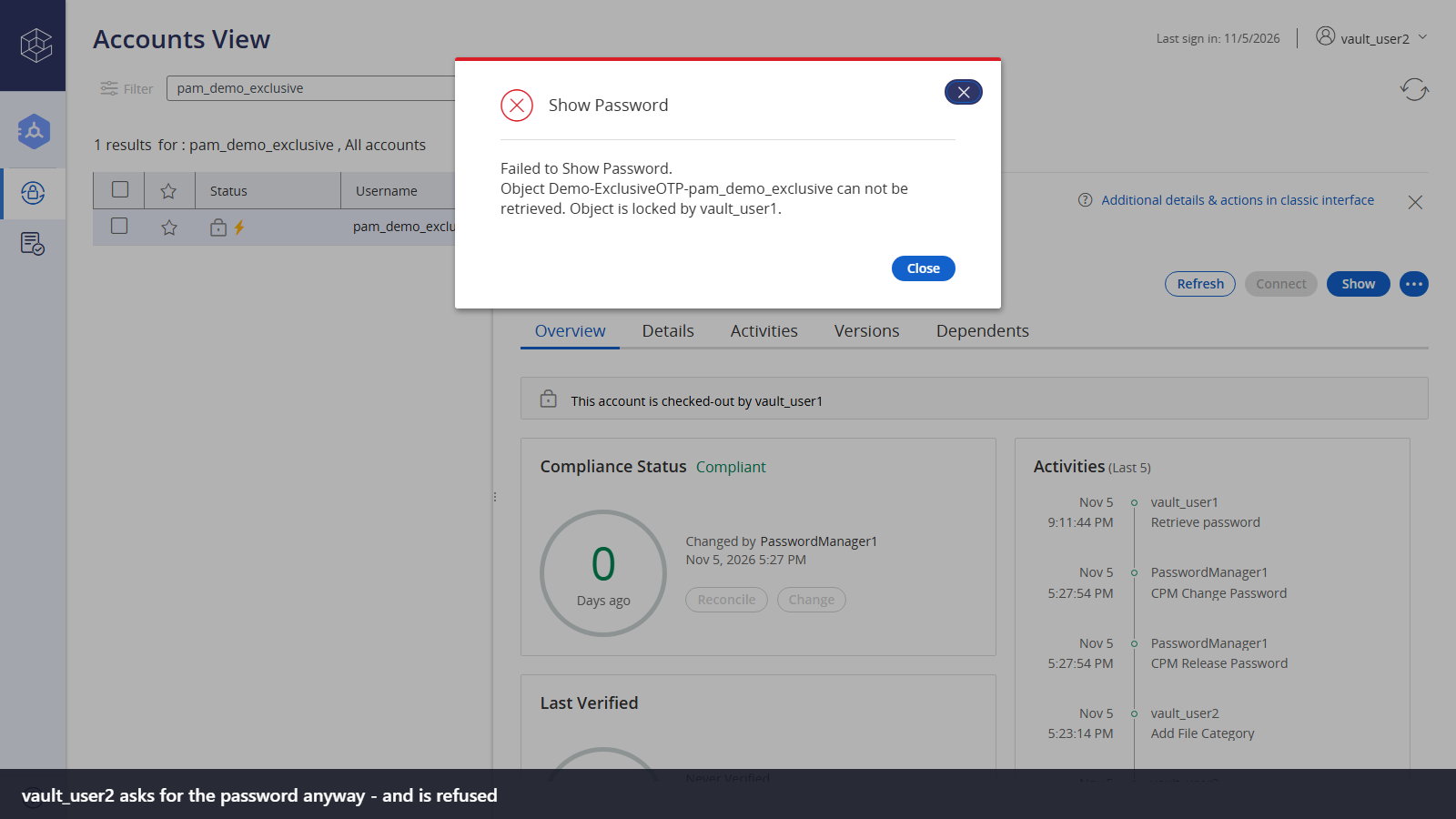
Scene 2 as the test recorded it: vault_user2 asks for the password, and PVWA refuses and names vault_user1 as the lock holder.
Lab prerequisites and setup
The test needs a small, dedicated set of objects, so it never touches accounts anyone else relies on. One PowerShell script creates them through the AD module and the PVWA REST API, and skips whatever already exists:
- an AD user as the target account, with a fine-grained password policy so the CPM may change it more than once a day (the default domain policy has a one-day minimum password age)
- a platform duplicated from the Windows domain account platform
- a safe managed by the CPM, with the standard users’ AD group as members (use, retrieve, list)
- the account itself, with automatic management on
Two things stay manual, because the PVWA has no REST API for them:
- Master Policy exceptions for the new platform: Enforce check-in/check-out exclusive access and Enforce one-time password access, both active. This page only exists in the classic interface.
ImmediateInterval= 1 on the platform, so the CPM picks up the change within a minute instead of up to five. This alone took a run from about five and a half minutes to under two.
The Playwright project itself is small: a config file, one test file, a page object, an API helper and a .env file with the PVWA URL, the two test users and an API user. Install it with npm install and npx playwright install chromium.
The building blocks
Four small pieces carry the whole test. The excerpts are shortened but otherwise as they run.
1. Login as a swappable strategy
The test never knows how a user signs in. It asks for a login strategy, and an environment variable picks one. Today that is the PVWA LDAP form; a later post swaps in a passkey login without touching the test.
export function pvwaFormLogin(method: 'ldap' | 'cyberark'): LoginStrategy {
  return async (page, user) => {
    await page.goto(`v10/logon/${method}`);
    await page.getByRole('textbox', { name: 'Enter your username' }).fill(user.username);
    await page.getByRole('textbox', { name: 'Enter your password' }).fill(user.password);
    // Until translations load, the button's accessible name is the raw i18n key "SIGN_IN"
    await page.getByRole('button', { name: /sign.?in/i }).click();
    // The logon call returns before the redirect: wait for the URL, not for network idle
    await page.waitForURL(url => !url.pathname.includes('/logon'));
  };
}
2. A page object that knows about the iframe
PVWA’s Accounts view renders inside an iframe, so every locator goes through frameLocator. A page object keeps that detail, and the search quirks, in one place.
async openDetails(accountUserName: string) {
  // Text typed before the first list has loaded is wiped by the view
  await expect(this.app.getByText(/results for/)).toBeVisible();
  const search = this.app.getByRole('textbox', { name: /search in all accounts/i });
  await search.fill(accountUserName);
  await search.press('Enter');
  await expect(this.app.getByText(`results for : ${accountUserName}`)).toBeVisible();
  await this.app.getByRole('gridcell', { name: accountUserName, exact: true }).click();
  await expect(this.details).toBeVisible();
}
3. Two users, two browser contexts
Each sign-in gets its own browser context, so the two users share nothing, like two people at two desks.
const context = await browser.newContext({ baseURL, ignoreHTTPSErrors: true,
  recordVideo: { dir: testInfo.outputPath(`video-${label}`) } });
const page = await context.newPage();
await standardUserLogin()(page, { username, password });
4. Server state through the API, polled instead of slept
The API helper returns what the Vault knows about the account. The lock holder only appears in api/ExtendedAccounts, the endpoint the PVWA interface itself uses; it is not part of the documented REST API.
await expect.poll(async () => {
  const state = await api.accountState(demoAccount.id);
  return state.lastModifiedTime > before.lastModifiedTime && state.lockedBy === '';
}, { timeout: rotationTimeoutMs(), intervals: [15_000] }).toBe(true);
expect.poll asks again until the condition holds or the timeout expires. If the CPM is slow, the test waits longer; if it never rotates, the test fails with a clear message, not a hang.
What PVWA 15 taught along the way
Most of the effort did not go into Playwright; it went into learning how the PVWA behaves when something other than a person drives it. These are the details that each cost a failed run.
| What | Symptom | What works |
|---|---|---|
| Sign-in button label | Button named SIGN_IN for a moment, then “Sign In” | Match both: /sign.?in/i |
| Logon redirect | Logon API returns 200, page still on the form | Wait for the URL to leave /logon, not for network idle |
| Accounts view in an iframe | Locators find nothing | Go through frameLocator('iframe') |
| Error messages outside the iframe | “Failed to Show Password” not found | Look for that dialog on the page, not in the iframe |
| Default view is “Recently used” | Account missing from the list | Search for it |
| Search typed too early | Search box empty, list unchanged | Wait for the first “results for” line before typing |
| Details dialog keeps its state | Check-in disabled right after the check-out | Click the dialog’s Refresh first |
| Password dialog closes itself | Dialog gone after about 13 seconds | Read the password right away |
| Check-in vs. unlock | API CheckIn refused for another user’s lock | Only the holder checks in; others use Unlock (needs the safe permission) |
| One-time password after check-in | Account still locked after check-in | Expected: it stays locked until the CPM has rotated the password |
| Stale CPM user in the lab | Change task never runs | Assign the safe to the CPM that is actually logged on |
| Password policy vs. platform | CPM error 2106 “does not meet the password policy” | Domain policy minimum length must not exceed the platform’s password length |
The last two are lab problems, not PVWA problems, but they are exactly the kind of thing an automated run exposes and a manual tester works around without noticing.
Making the run watchable
A passing test is not yet good evidence. The first version passed, but its video was five minutes long and mostly still: the screen never showed who held the lock, and nothing moved while the CPM rotated the password. Three changes fixed that.
Four scenes instead of one long session. Each step signs in fresh and closes its browser at the end, so each video is one short scene: check-out (14 s), refusal (15 s), check-in (10 s), and the new password (18 s). The CPM wait happens between scenes, with no browser open, so nothing is recorded while nothing happens.
A record mode. At full speed the run is too fast to follow. npm run record runs the same test with every action slowed down and a short pause at each moment that matters. npm test stays at full speed for regular runs.
Stills directed from a shot list. Automatic screenshots only show whatever was left on screen when a browser closed. Instead, the test has capture points right after the assertion each one illustrates, and a JSON file decides what each still shows: the caption, whether the element gets a red frame, whether to crop. The caption also appears as a subtitle in the video, so stills and videos tell the same story.
"user2-refused": {
  "caption": "vault_user2 asks for the password anyway - and is refused",
  "highlight": false, "crop": false, "pause": false, "enabled": true
}
Setting "pause": true on a moment and running the visible-browser mode stops the test there, so a person can arrange the screen before the still is taken. The person decides what the picture shows; the test decides when the moment has really happened.
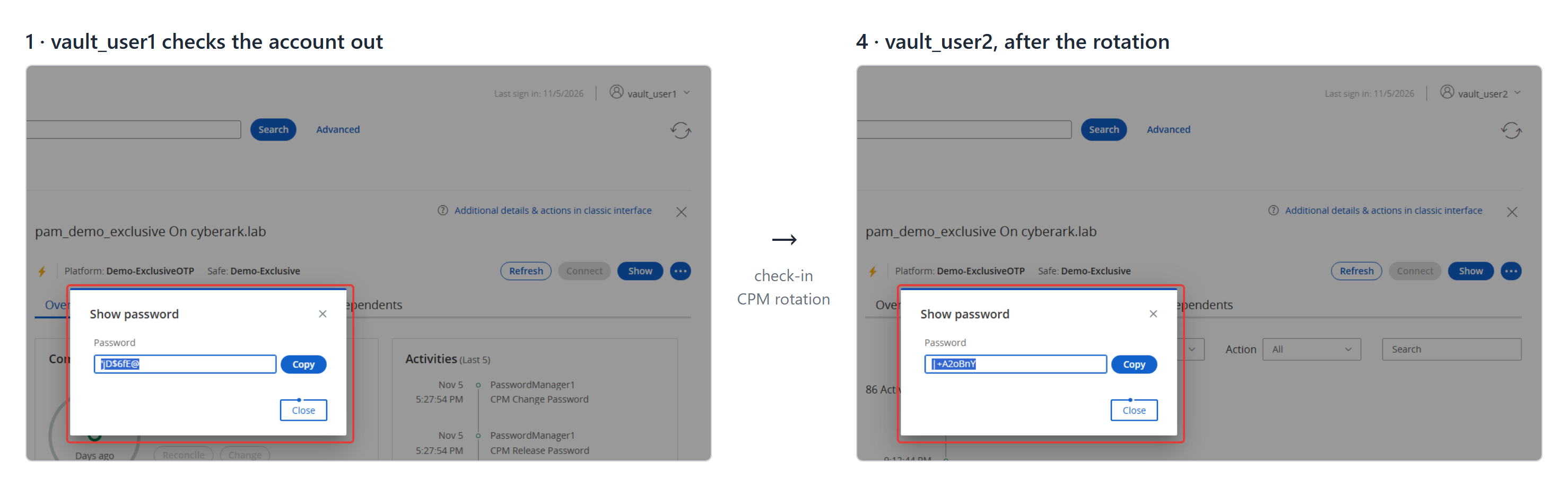
Left: the password vault_user1 saw at check-out. Right: the password vault_user2 gets after the check-in and the CPM rotation. The test compares the two and fails if they match.
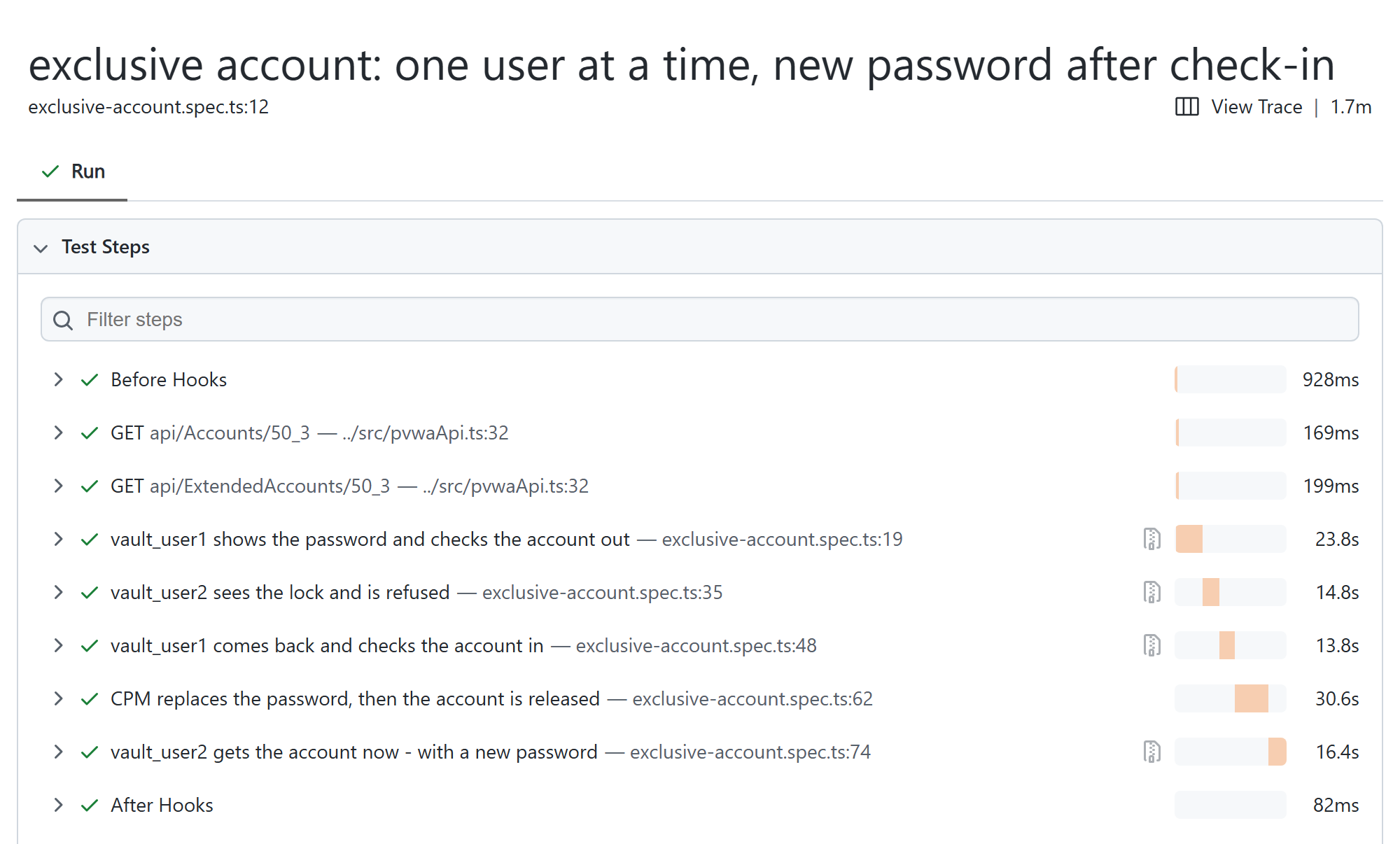
Every run ends in Playwright’s HTML report. Its page for the test lists each scene as a named step with its duration, including the API checks, and keeps the stills, the four videos and the trace below the steps. That page is the evidence a tester hands over, instead of screenshots pasted into a spreadsheet.
What about MFA?
The lab test signs in with a directory password and no second factor. In a real environment, MFA is the hardest part of automating a user journey, and it should be.
A push approval on a phone is designed to need a person. A test that gets around it either fakes the approval or excludes the test account from the MFA policy, and both prove nothing about the control. Worse, an excluded account is a permanent hole in exactly the policy you are trying to test.
So the honest question is not “how do I skip MFA” but “how do I give the test its own legitimate factor”. There are four workable answers:
| Approach | What it proves | Caveat |
|---|---|---|
| Test identity with a TOTP authenticator: the test generates the code from a stored seed | MFA is demanded and passed | Does not satisfy policies that require push or phishing-resistant methods; the seed is a secret |
| Software passkey: Chromium’s built-in virtual authenticator holds a registered passkey | Phishing-resistant MFA passed without a person | Registered once, then stored and re-injected each run; the identity provider may reject software authenticators |
| One person approves once, the rest runs unattended | The real user experience, including push | Not fully unattended; works where the browser session carries single sign-on |
| No simulation: prove MFA from sign-in logs | Every real login, with the policy applied and the method used | Evidence after the fact, not a test you can run on demand |
In practice they combine: the functional test (who can see which password) uses a test identity with its own factor, and the MFA policy itself is evidenced from sign-in logs. PVWA 15 also offers native FIDO2 devices, which makes the passkey route interesting even without an external identity provider. That is the subject of the next post.
When the environment says no
Many PAM users work from locked-down virtual desktops where Node.js, browsers driven from code and AI coding assistants are not allowed. Two points help there.
First, separate writing a test from running it. The test can be built and proven in a lab; only the runtime has to be allowed where it runs. Which assistant helped write it does not matter to the target environment.
Second, a large part of this test does not need a browser at all. Every “proven by” in the mapping table is an API call, and plain Windows PowerShell can make those calls. A script can check lock state, scheduled changes and rotation, record timestamped evidence, and prompt a person for the few clicks it cannot do itself.
If you go that way, test it under Constrained Language Mode, which many locked-down desktops enforce. Three common habits fail there on Windows PowerShell 5.1:
[pscustomobject]@{...}casts are blocked;New-Object PSObject -Propertyworks.Import-PowerShellDataFilefails;Import-LocalizedDatareads the same.psd1file.- Credentials saved with
Export-Clixmlcome back fromImport-Clixmlas dead copies; a DPAPI string fromConvertFrom-SecureStringworks.
You can simulate the mode on any machine: in a fresh powershell.exe, run $ExecutionContext.SessionState.LanguageMode = 'ConstrainedLanguage' before your script.
Limits and what comes next
This is one control, in one lab, against one PVWA version. A few honest limits:
- UI tests need upkeep. Role-based locators survive most changes, but a redesigned dialog will break a step. The API checks are the stable part, which is one more reason to prove results there.
- Some setup stays manual. The Master Policy has no REST API, so the exceptions are configured by hand once.
- The evidence contains secrets. Videos and traces record the revealed passwords and the typed sign-in passwords. Here the passwords are rotated right after, which is the point of the scenario, but review any recording before it leaves the lab.
- Undocumented endpoint. The lock holder comes from an endpoint the PVWA interface uses internally; a future version may change it.
What makes it worth it: a test that a person runs once before an audit can now run every night, after every upgrade, and produce the same evidence each time, including the negative case that manual testing tends to skip.
The next post replaces the directory password with a passkey and looks at what it takes to automate a phishing-resistant login without weakening it.